Each employee can have their salary set in the system.
Salary calculation is required to provide accurate payroll reports.
Employee salary can be added/ viewed/ changed in the employee card.
Steps to be taken to add a salary for an employee:
1. Click on name and surname in the schedule (to open the employee card).
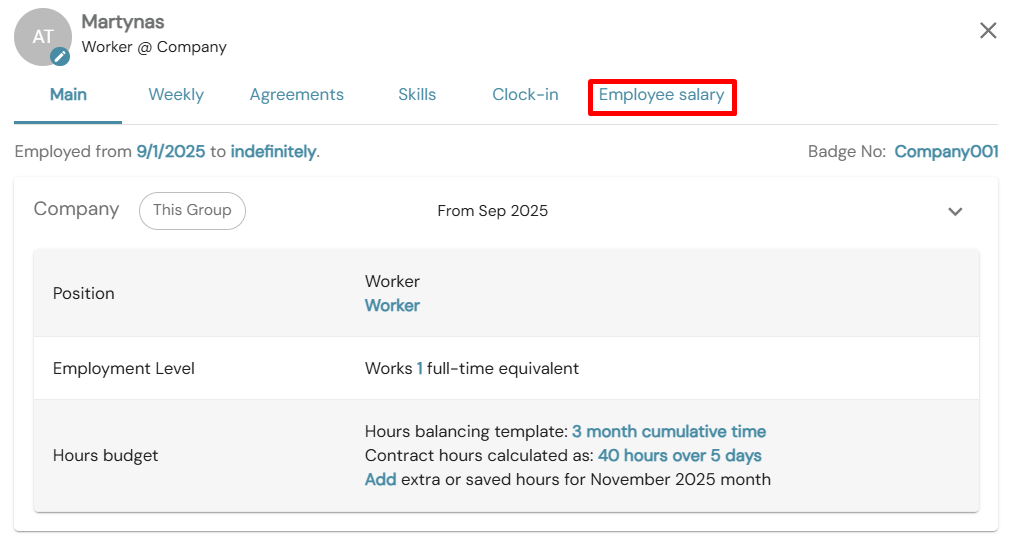
2. Click the Employee salary button in the employee card.
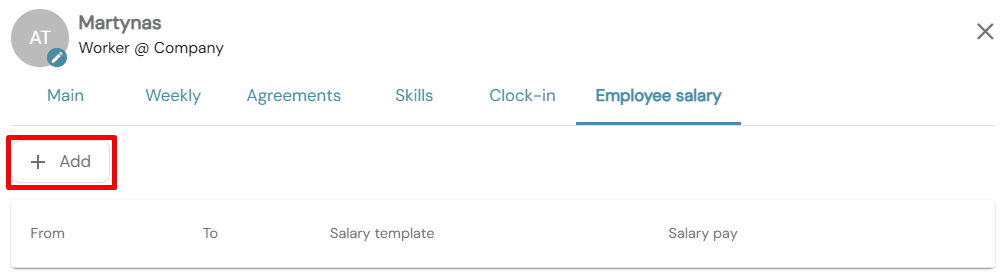
 3. When in the employee salary view, click +Add button
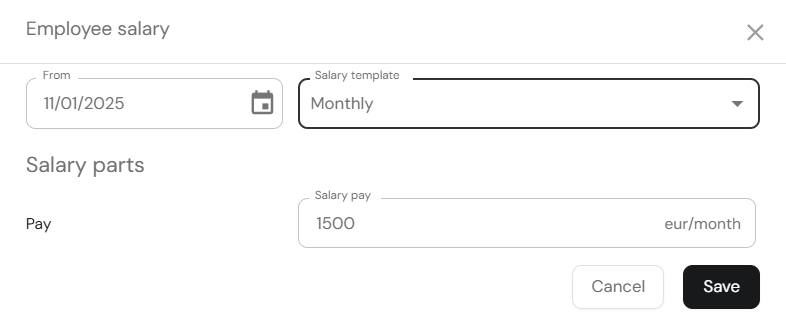
4. A pop-up window with employee salary parameters will open
5. In the pop-up window, you can perform these actions:
- Select a date from when an employee has the salary set.
- Select a Salary template (the options in the drop down menu can be set to fit customer needs)
- Enter the salary pay
- Conditional: For this example if Salary template is selected as Hourly (2nd picture) you can click +Add and select another Zone and adjust salary pay for that Zone.
- The Trashcan icon will delete the additional line.
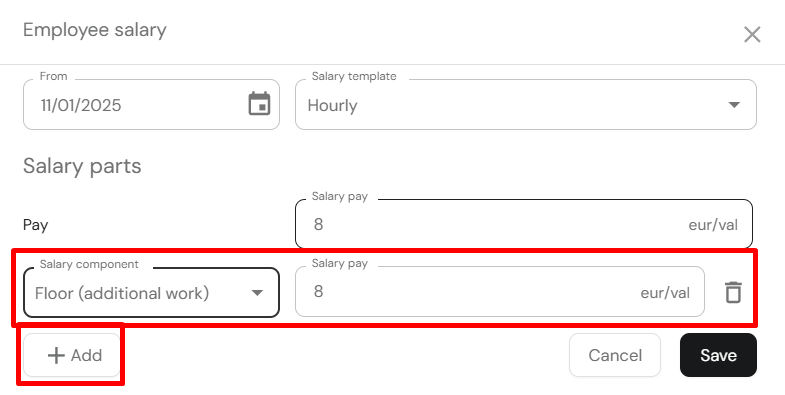
6. Once you have set up the required date, salary template, salary pay and if required additional salary component, you can click Save to form a record.
7. Once you save a record it should appear as in a picture below. If you press on the pencil icon, you will be brought into an edit window.

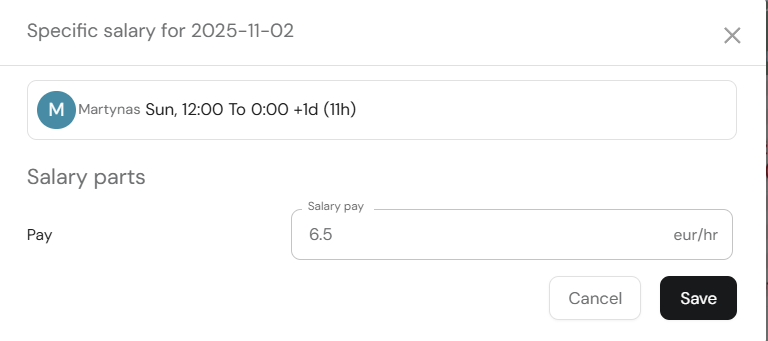
8. In the schedule pressing on the shift and selecting Salary information you can change employee salary for the specific day. This is NOT a default functionality.
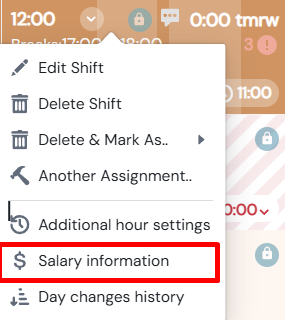
9. In the window you can view employee name, date that their shift is scheduled, shift length and their pay. Pay can be adjusted in this window. Pressing save button will save the record.