
Hourly breakdown in the new schedule view shift editing can only be viewed if data is transferred from the WORKOFO system.
There are two possible scenarios: automatic data transfer integration (using API) or table report generation in WOKROFO, which is directly uploaded to the accounting system.
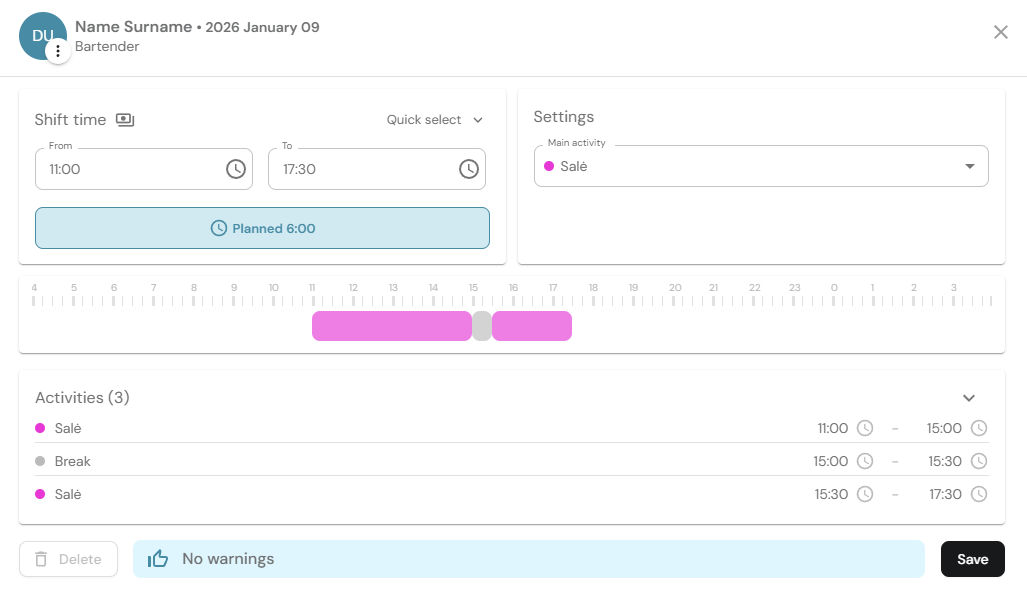
Exception: if you use the Navision accounting system, the display of hours may not work properly, as each Navision report and data structure is created specifically according to user needs.
In the Month v2 view, you can see the distribution of employee hours into day and night shifts, as well as shift costs, if the salary functionality is filled in.
1. Open the "Schedule" window in the Workofo program and select the "Month v2" view.

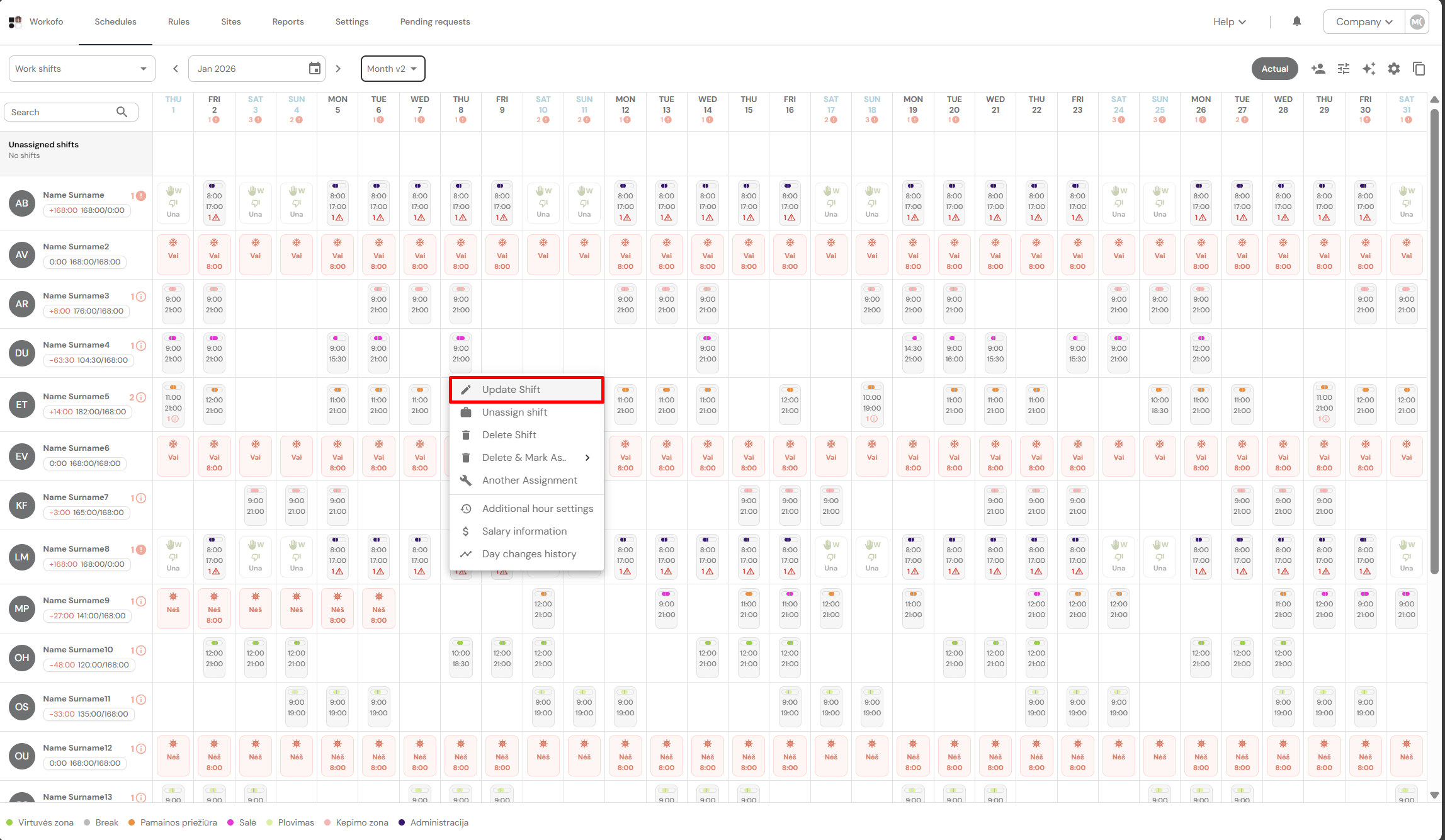
2. Left-click on the desired shift and select "Update shift."
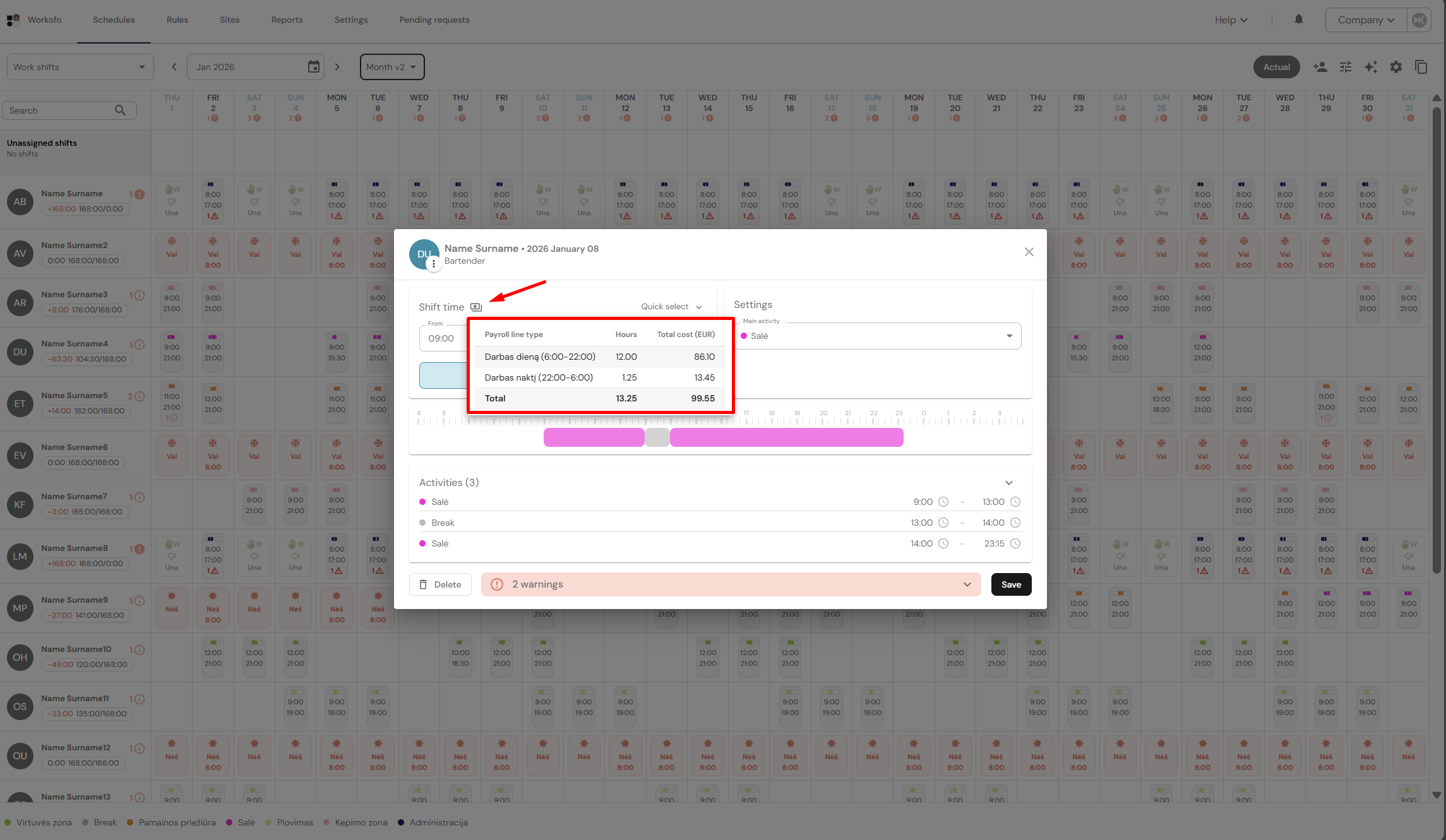
3. In the window that opens, click on the "Money" icon to open a window where you will see the day and night shift hours and the employee's costs for the hours worked during the shift.
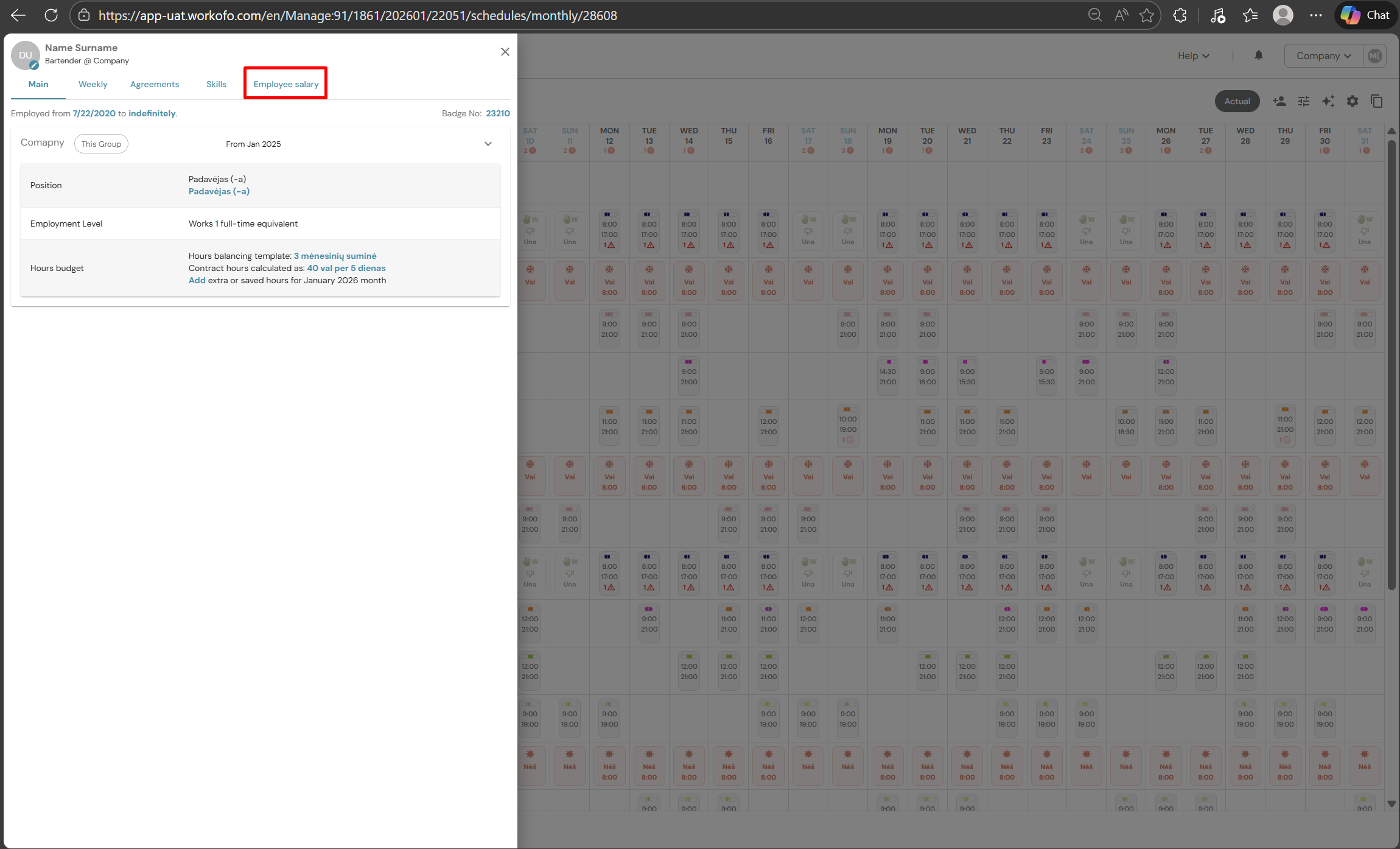
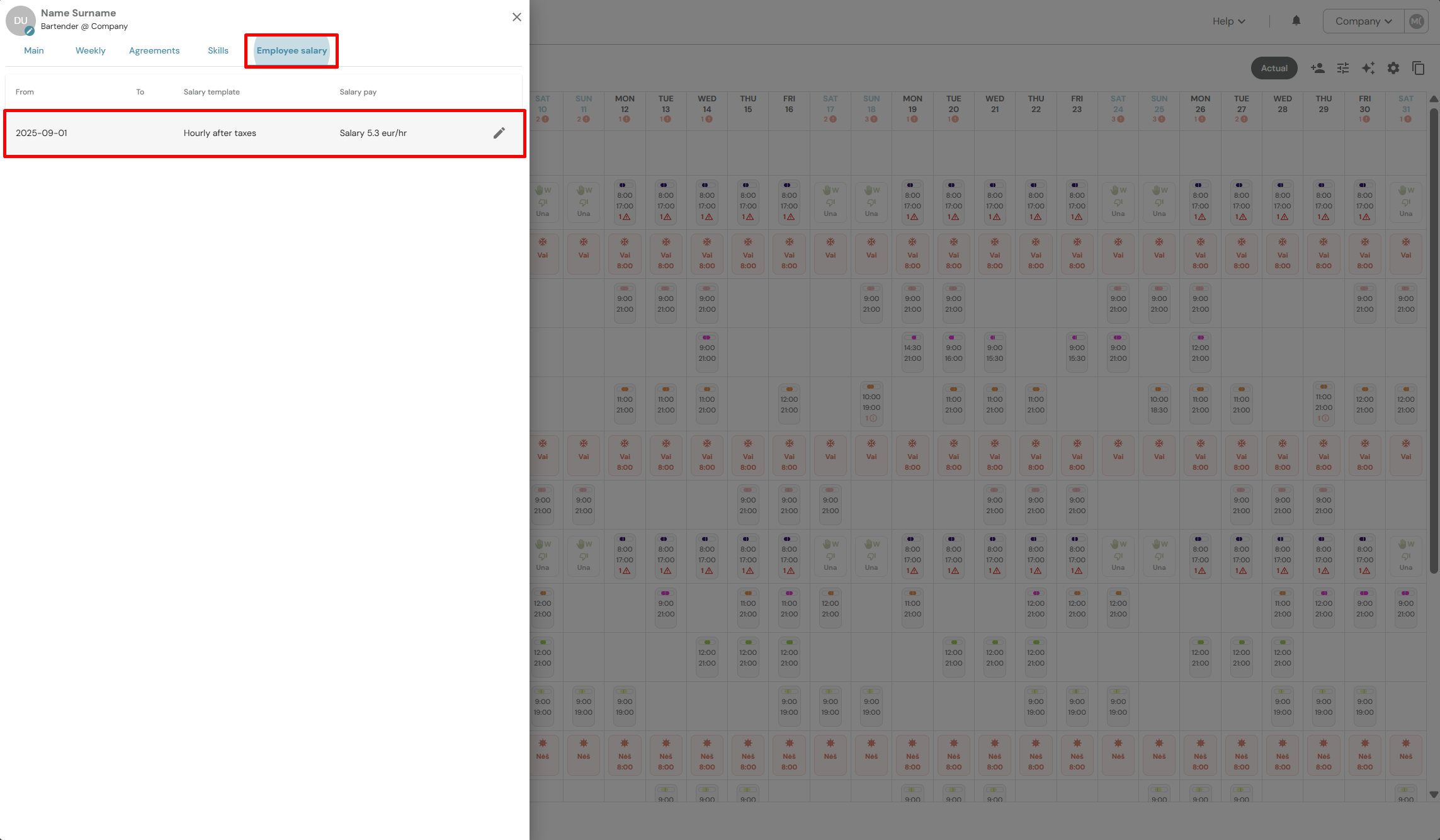
4. If you need to see the employee's shift costs, check that the employee has their salary information filled in. In the employee information window, select "Employee salary."
5. We check that the salary information has been filled in.
Related articles: