The WORKOFO system calculates employee requirements based on workload forecasts using historical data and other parameters. Information about the minimum and maximum staffing requirements and the planned additional workload using additional task rules is also included in the workload requirement.
Recommended articles:
How do I plan additional tasks?
How do I set the mandatory number of employees at work?
How do business rules function?
The system allows you to view information at 15-minute intervals on employee demand and how much is currently allocated to cover employee demand.
How to view statistics:
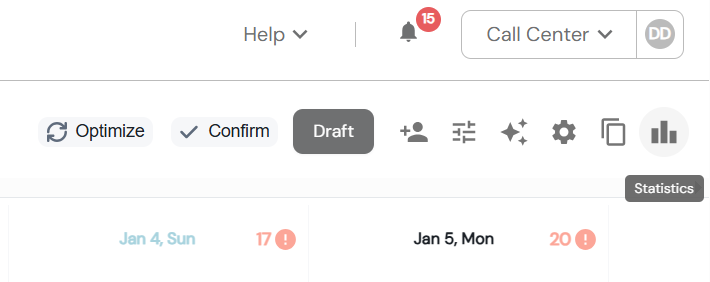
1. In the "Schedules" window on the right side of the screen, click on the Statistics icon.
When you hover the mouse cursor over the icon, the system will display the icon name.
2. The system will open statistical information for each day. By placing the mouse cursor on the graph, you can view detailed information for a specific interval.
The selected interval is displayed in the header
Assigned shifts: 5 / 5.92
Value of 5: employees assigned to the selected interval
Value of 5.92: employee demand for the selected interval
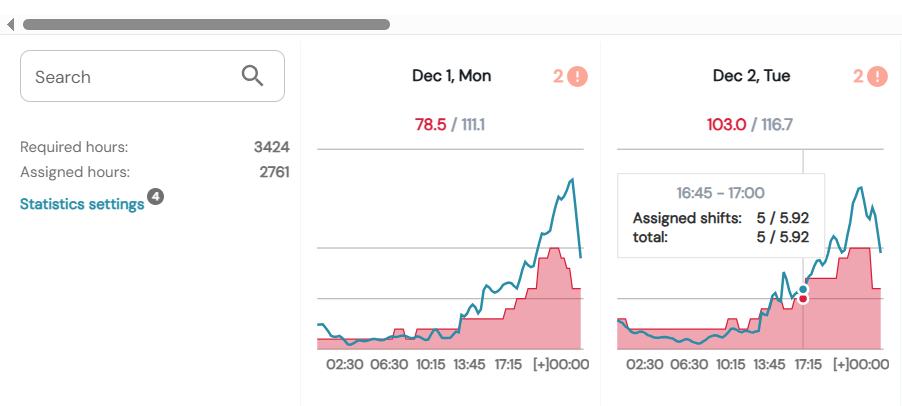
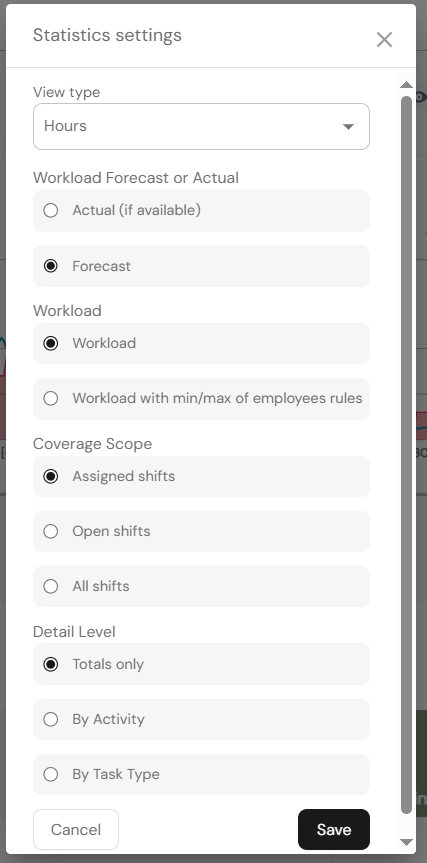
If you want to select other data, you can click Statistics settings on the left side of the screen and choose from the available options for statistics detailing.
I. View type - allows you to select a different view of statistics. The default is "Hours." If you use the WORKOFO function for a custom view of your organization's statistics, you will have more options.
II. Workload forecast or actual - if you are checking the past period and historical operations have already been entered into the WORKOFO system, you can view not only the forecasts prepared by the WORKOFO system, but also the actual workload by changing the selection in the settings.
III. Workload - according to the standard, the system will always display the workload based on the workload forecast and additional tasks. If necessary, you can add a rule to the workload review that sets the minimum number of employees required after changing the setting.
The minimum staffing requirement will be evaluated together with the workload according to logic - if historical operations require 1 employee, but there is a rule that requires 2 employees, the system will show a higher value (i.e., a requirement for 2 employees) in the schedule after changing the setting.
IV. Coverage scope - determines which shifts should be included in the coverage statistics. For example:
a) Assigned shifts: the system only evaluates shifts that are directly assigned to employees.
b) Open shifts: the system only evaluates shifts that are not assigned to employees.
c) All shifts: the system evaluates all shifts, both assigned and unassigned.
For more information about unassigned shifts, we recommend reading the article: What are unassigned shifts?
V. Detail level - determine how to display the workload requirements for statistics.
a) Totals only: the system calculates the total number of hours required without distinguishing between different types of activities.
b) By activity: the system evaluates each activity separately. For example, if you plan to work at the cash register and in the hall, the system will display the requirements for these two activities and assign the number of employees separately in the schedule.
c) By task type: statistics are displayed according to the different tasks assigned, i.e., at a more detailed level than by defined activities.