
A selected shift can be transferred to another employee.
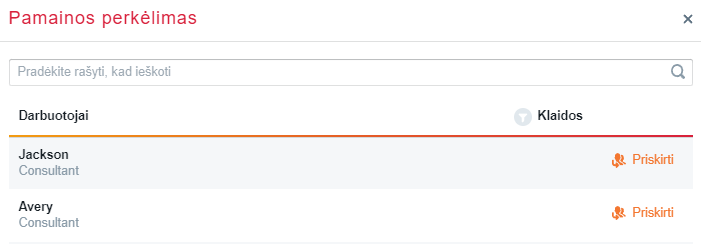
When transferring, the system will check and display a list of employees to whom the shift may be transferred.
If an employee has a shift, or if strict rules have been violated (for example, the norm of rest hours), the employee will not be displayed in the list.
Steps to be taken to transfer a shift to another employee:
1. A shift can be assigned to another employee in 2 ways:
Way I
a) Hover the mouse cursor over the shift and click arrow down
b) Choose Assign the shift to another employee from the list
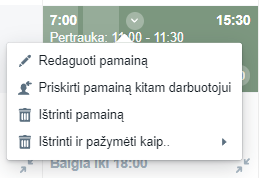
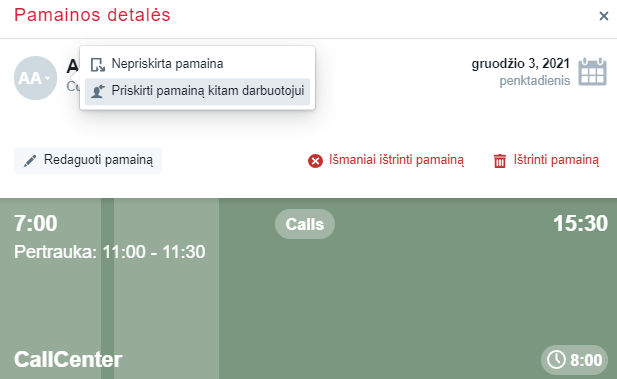
Way II
a) Click the shift and open the Shift Details window
b) Click the employee initials and choose Assign the shift to another employee from the list
2. Click from the list the employee to whom the shift is to be transferred and click Assign (an employee or an error filter can be used). Having clicked error icon, the system will display the work schedule requirements that will be violated having assigned the shift to the employee.
3. Confirm shift transfer
A green success message will inform of the successfully transferred shift.
The system will transfer the shift to the employee without an additional confirmation of the employee.
In Month V2, you can change a shift (from one employee to another) by dragging it with the mouse.
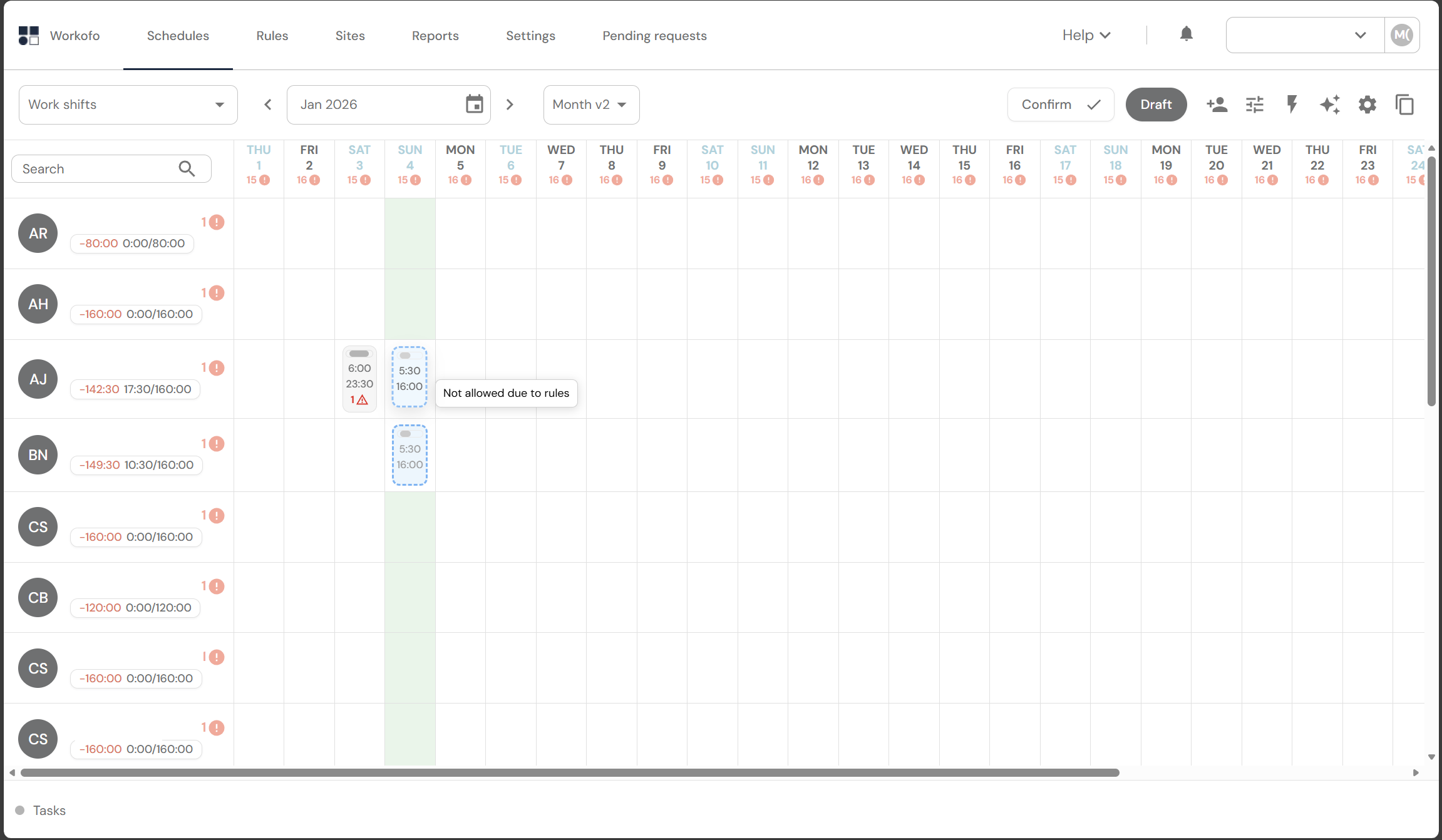
1. Once you have opened the Month V2 view, find the shift you want to change, press (and hold) the left mouse button on the shift and drag it until the system calculates which employees are allowed to work that shift (taking into account legal requirements). Permitted days will be marked in green.
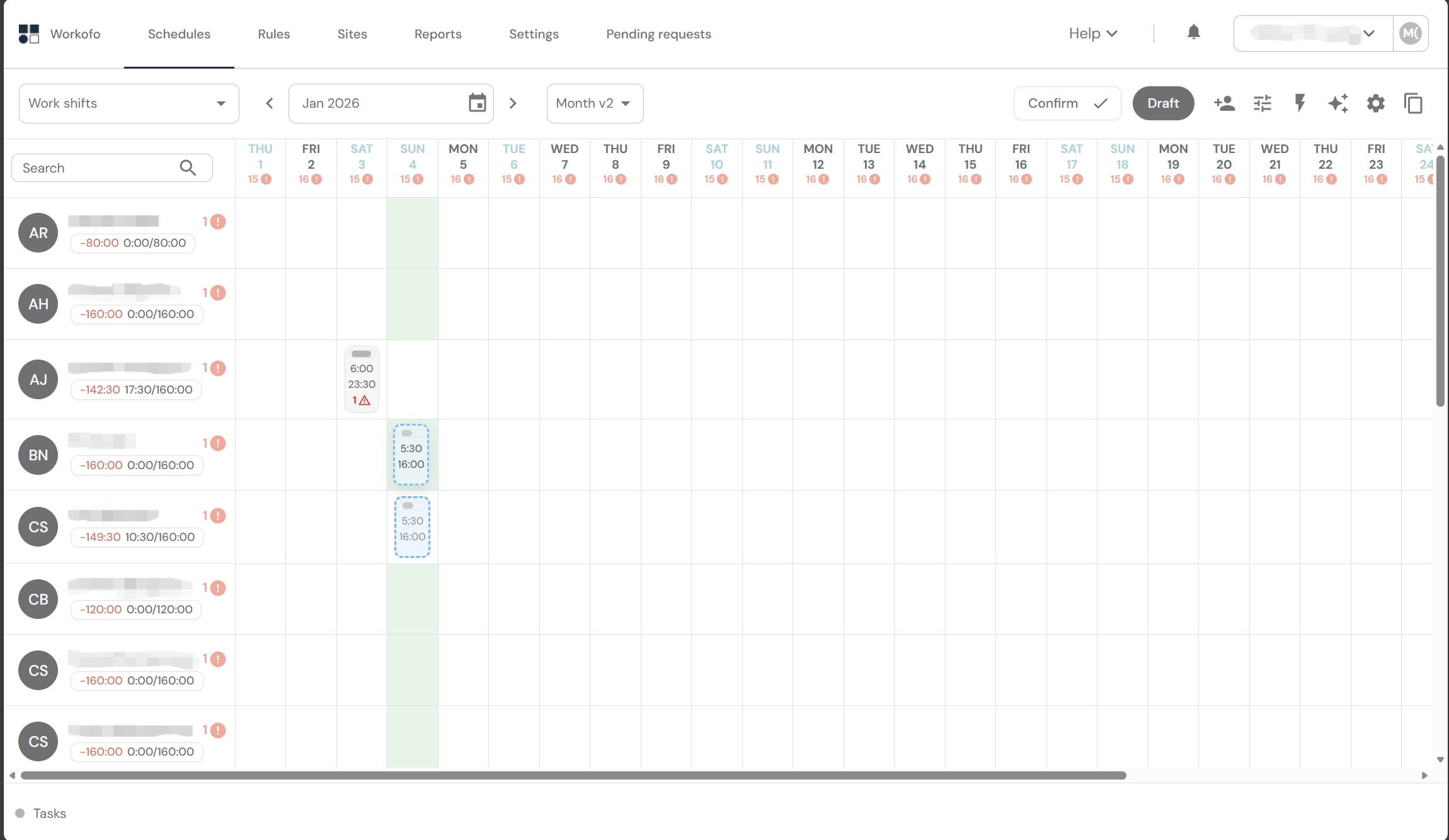 2. When attempting to move a shift to a day that is not marked in green, the system will display an error message: "Not allowed due to rules."
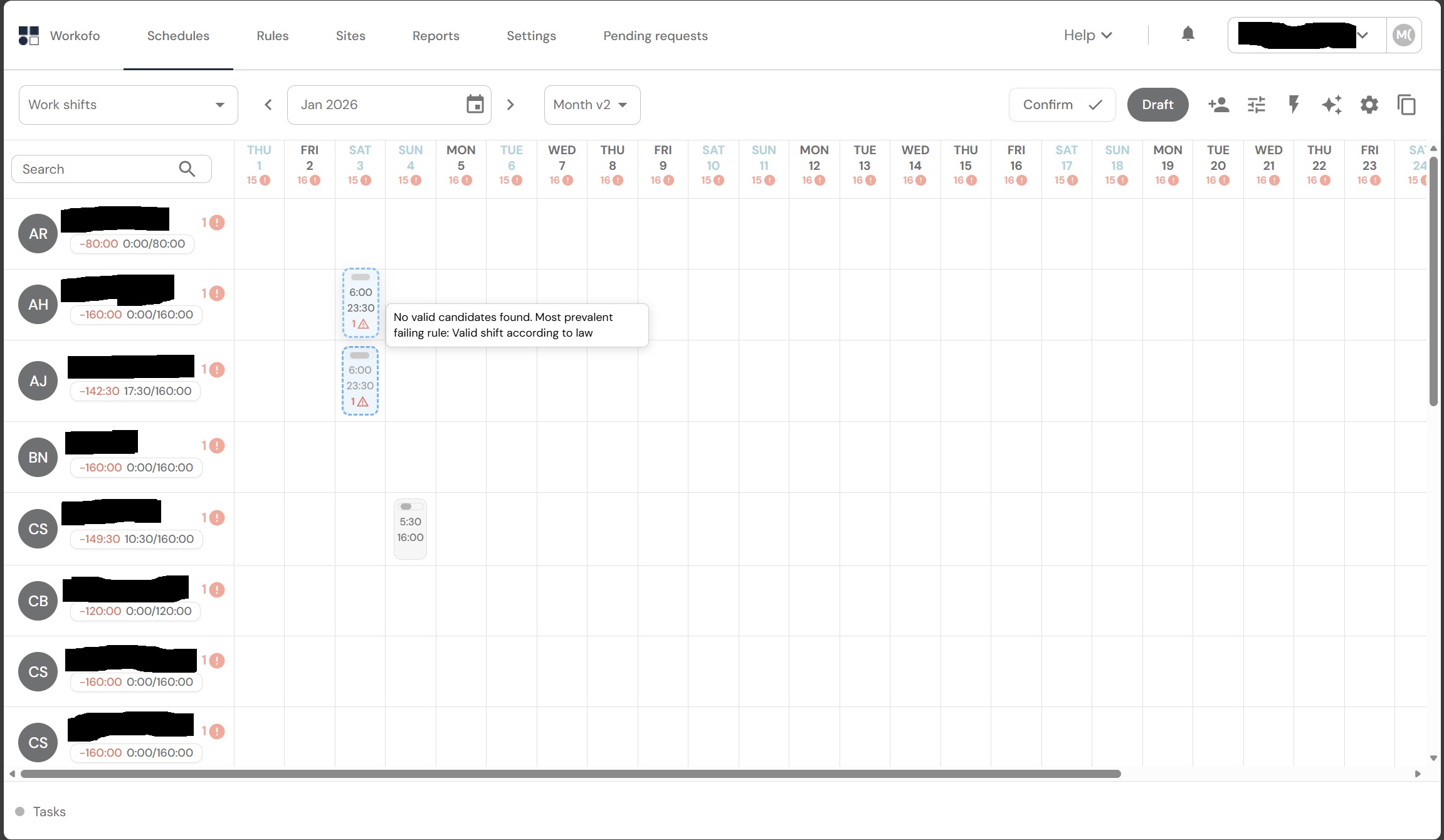
Exception: If you have a shift that does not comply with the labor code and you try to move it to another employee, the system will display an error indicating the reason. (Example in the photo below)
Related articles: